
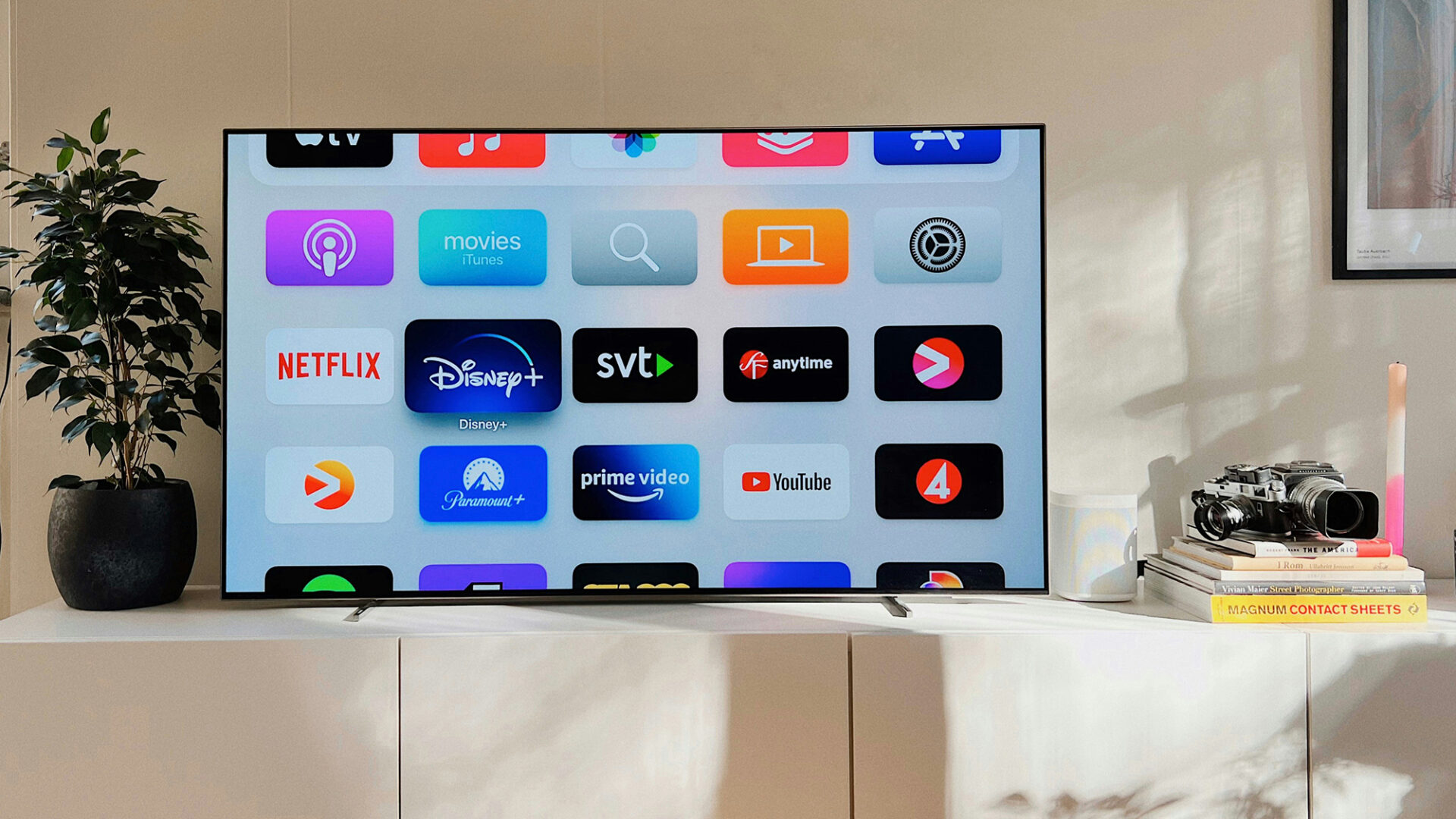
Most of the tech you use each day tracks you—whether it’s to target ads at you or to make sure your smart lights come on when you walk in the front door. Smart TVs are no different.
A television set doesn’t follow you around all day like a smartphone does, but it still has intimate knowledge of you and your family, including the types of programming you like to watch. It might also know the apps you have installed, and even the types of devices you plug into the HDMI ports.
That’s most likely something you’d rather didn’t happen—and so here’s your complete guide to making sure your smart TV tracks you as little as possible.
Now obviously there are multitude of models and manufacturers on the market, and even TVs with the same brand name on the front don’t always run the same software. Trying to give specific instructions can be tricky, but the steps we’ve put below should work for the most modern TVs from each company.
If the menus you come across don’t match up with the steps below, you should be able to find the relevant options without too much trouble. A quick web search for forum posts or Reddit threads from people with your TV should uncover even more resources.
What to look for
There are two main categories of data to look out for here. The first is data that builds up an advertising profile on you, so marketing can be more precisely targeted—as happens with ads on platforms like Google and Instagram. Blocking this data collection doesn’t necessarily mean you’ll see fewer ads, but advertisers will know less about you.
The second category is along similar lines, but it’s a bit more specific. It’s called Automatic Content Recognition (ACR), and as the name suggests, it means your TV is going to monitor everything that gets put up on the display, and attempt to identify it.
Once your TV knows what you like to watch, it can use that information to serve up ads and content recommendations more personalized to you. It may mean your movie recommendations improve, but it comes with a big trade-off in terms of privacy.
Wi-Fi settings
No matter your model of television, there’s one tip that applies universally: Disconnect it from your Wi-Fi. That will go a long way to limiting the amount of data that gets fed back to headquarters. The setting should be pretty easy to find, and this might be as straightforward as turning off a toggle switch.
Now, obviously this is going to limit you in terms of your streaming apps—but it’s something to think about doing when you’re watching physical media, or perhaps playing games that work offline. For anything that you don’t need the internet for, turn off the Wi-Fi.
There’s another approach here, which is to keep your TV connected to the web, but hook it up to a guest network on your router (it’s a feature that most routers now offer). While this means your TV can still ‘phone home’ as it were, it also means it can’t see (and report back on) the other devices you might have connected to your network.
Look for a guest network setting on your router. Screenshot.
LG TVs
Head to the main Settings screen on your LG TV (there should be a Settings button on your remote), and look for General > System > Additional Settings. When you reach this screen, toggle off the Live Plus option—this is the name LG gives to ACR.
From Settings, you can also pick Support > Privacy & Terms. Here you can find LG’s privacy policies, as well as a Do Not Sell My Personal Information toggle switch: Enable this to restrict what LG can do with its data.
There are yet more controls under User Agreements on the same screen. You’re able to turn off voice access, viewing information data collection, and cross-device advertising (so targeted ads follow you around different devices) from this section.
Samsung TVs
From the home screen on your Samsung TV, open up the main menu and then choose Settings > All Settings > General & Privacy > Terms & Privacy. This screen gives you a host of information about how your data is collected, as well as some options for restricting the collection of information and the targeting of ads.
Follow Privacy Choices and then select Terms & Conditions, Privacy Policy and you’ll find an option labeled Enable to make content and advertising on Smart TV more interactive which you can disable to limit targeted advertising.
On this same Terms & Conditions, Privacy Policy screen, there’s another checkbox for Viewing Information Services—this is the name Samsung gives to its ACR technology, so be sure to disable this to turn off that type of tracking.
The Samsung TV Plus interface. Screenshot: Samsung
Sony TVs
If you’ve got a newer Sony set, then it’ll be running the Google TV software. If you open up the main Settings pane from the home screen, choose All Settings and then Samba Interactive TV underneath Privacy—this is the ACR bit. Select About to see the terms of service and to switch the feature off.
There’s also a link here to the privacy policy of Samba, which is the company handling ACR for Sony. If you follow this link you’ll get to yet another setting for ad tracking, which you can disable. On the same screen, you can reset the advertising ID to clear any profile information that may have been built up already.
Sony TVs and Google TV are a good example of setups where you can be tracked across multiple devices—so Google might use your Sony TV information for ads on Google Maps, for example. To manage the data and privacy settings for your Google account as a whole (including Google TV), head to this page in your Google account on the web.
Other brands
As mentioned above, it’s impossible for a single guide to cover all of the different TV models and software versions out there. But hopefully the steps above get you close to finding the right privacy and data collection settings.
For TVs manufactured by Roku, for example, if you open Settings from the home screen and then select Privacy > Smart TV Experience, you can disable Use info from TV inputs to switch off ACR. Targeted advertising, meanwhile, is managed by selecting Advertising and resetting the tracking ID.
Be wary of signing up to or agreeing to any tracking when you set your television set up for the first time, as well. Even if you’ve opted out right at the start, or turned off the settings for your model as described above, you might see pop-up messages encouraging you to opt back in—so watch out for these too.
The post How to stop your smart TV from tracking you appeared first on Popular Science.
